
Remote Control for All TV
ZipoAppsHouse & Home
3.7166.00 Reviews
- Version
- 5.5.1
- Installs
- 10.00M
- Age Rating
- Everyone
Screenshots
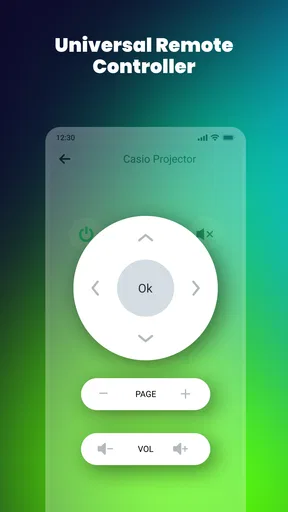
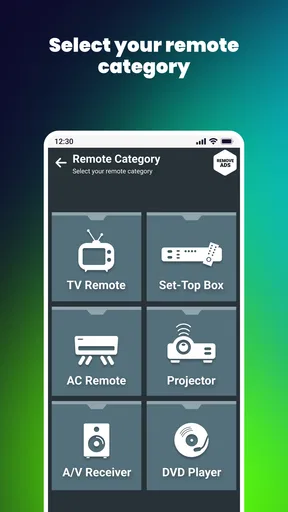
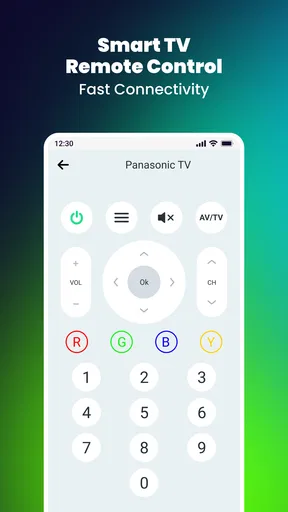
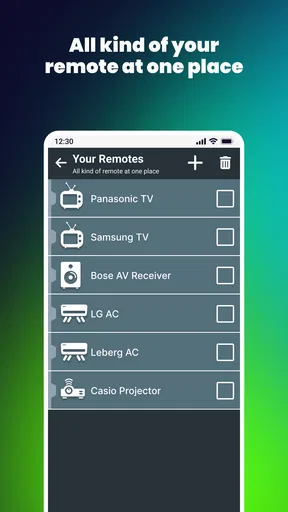
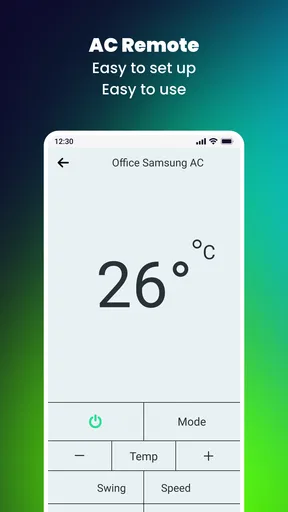
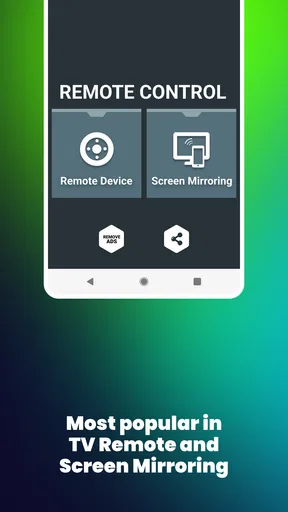
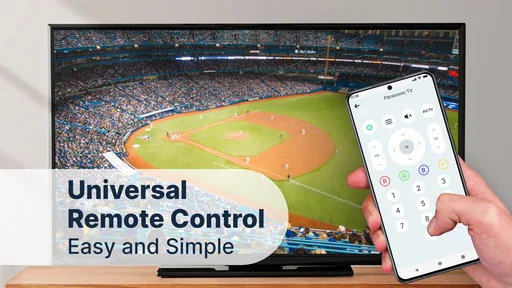
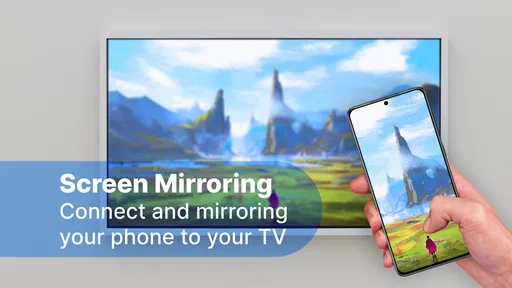
Our Review of Remote Control for All TV
 Analysis by Appyee
Before relying on a phone as the only way to control a television, I’d check what kind of connection the set actually supports. A remote app can feel effortless once it is talking to the TV, but that first connection is where expectations often meet a practical snag: a phone cannot control a set simply because both devices have screens. The television needs a supported way to receive commands, and the setup has to match it.
That distinction matters with Remote Control for All TV, a free House & Home app from ZipoApps. It is aimed at people who want common television controls on a phone rather than another physical remote. The app has a 3.8 average from around 47,000 ratings and more than 10 million installs, so it has clearly found an audience, though popularity alone cannot guarantee that a particular TV and phone will work well together.
Where the first attempt can go wrong
The most useful thing to keep in mind is that “universal” does not mean every setup behaves identically. Some televisions can receive commands over Wi-Fi, while others need infrared support. If you select a brand and the buttons do nothing, that does not automatically mean the app is broken; the connection method may not match the TV, or the phone may not be able to send the required kind of signal.
I would start close to the television and try a basic command, such as volume or power, before spending time arranging controls. If the phone and TV use Wi-Fi, check that they are on the same home network and that the television is switched on and ready to respond. If the setup depends on infrared, the phone needs the appropriate IR capability, and its signal has to be aimed toward the set. A phone without that hardware cannot gain it through an app.
There can also be a difference between controlling the TV itself and controlling a separate streaming box or receiver. If volume changes but channel or input controls do not, I would check which device is currently being addressed rather than repeatedly tapping every button. A television may show programmes through an external device, and the control you need can belong to that device instead.
Getting Started with the App
So, here's the scoop: Remote Control for All TV is a nifty little app that promises to turn your smartphone into a universal remote. I was a bit skeptical at first—how many times have we heard that line? But I decided to give it a whirl, and boy, was I pleasantly surprised.
Setting it up is a breeze. After downloading the app, it guides you through a simple setup process. It supports a wide range of TV brands, from Samsung and LG to less mainstream ones. Just select your TV brand, and voilà, you're ready to roll.
Features That Make It Stand Out
Now, let’s dive into what makes this app a must-have. First off, the user interface is clean and intuitive. No need to be a tech wizard to navigate through it. Everything is laid out in a way that makes sense, and the buttons are responsive, which is a huge plus.
Another feature that caught my eye is the voice control option. Imagine lounging on your couch and commanding your TV with just your voice—it's like having your very own Jarvis. The voice recognition is surprisingly accurate, even with my mumbling.
There’s also a customizable button layout. You can rearrange buttons based on what you use the most. So, if you’re always toggling between Netflix and YouTube, you can have those shortcuts right at your fingertips.
Setup checks that save time
Once the basic test works, I would tailor the layout around the commands I actually use, rather than trying to recreate every button on a traditional remote. Put frequent actions within easy reach and leave rarely used controls alone. That keeps the screen simpler, especially when I’m trying to pause or adjust the sound without looking down for long.
For a shared living room, it is worth agreeing on one phone as the initial setup device and testing the controls before everyone depends on them. This avoids a familiar source of confusion: one person assumes the app is paired to the television while another is trying to control a different set or input. If several TVs are in the home, label or otherwise distinguish the setups where the app allows it, and test each one from the room where it will be used.
Voice commands can be convenient when my hands are busy, but I would treat them as an optional shortcut rather than the only way to operate the TV. Background conversation, a noisy room, or a command the app does not interpret as expected can make voice input less dependable than tapping a visible button. Keeping the ordinary controls accessible gives me a quick fallback, particularly when I only need to change volume or pause playback.
Compatibility is also a practical question before choosing a remote app. This one is free to download, is rated for Everyone, and its current version is 5.4.7 for devices running Android 8.0 or later. In-app purchases range from $0.99 to $99.99 per item, so I would look over any purchase prompt carefully and decide whether the free experience meets my needs before spending anything. It was released on April 8, 2020, and is developed by ZipoApps.
Compatibility and Connectivity
One of my initial concerns was whether this app would work with my slightly older TV model. To my delight, it did. Remote Control for All TV is compatible with a wide array of models, both new and old. Just make sure your TV supports IR or Wi-Fi connectivity.
The app connects seamlessly via Wi-Fi, which is great because it means you don’t need an extra IR blaster. It even worked through walls, which was a game-changer for me. No more pointing and hoping.
When the controls stop responding
If a command worked and then stops, I would troubleshoot in a calm order instead of reinstalling straight away. First, check that the phone and television are still connected to the expected network, then make sure the TV has not been switched to a different input or control target. Reopen the app and try a simple command again. If the setup uses infrared, move closer and aim toward the TV; physical obstructions or a changed position can matter more than they do with a network connection.
It also helps to separate a connection problem from a button-specific problem. If volume responds but another control does not, the phone is communicating at least partly, so I would check whether that function is available for the selected TV or belongs to a connected box. If nothing responds, I would revisit the chosen brand and connection method before assuming that every control is faulty.
During an ordinary evening, that approach is more useful than it sounds. Imagine the physical remote has gone missing just as someone sits down to watch a show. I would open the app, confirm the living-room TV is the target, test volume, and then use the on-screen controls to get playback started. If the phone is on the wrong network or the set is controlled through a separate device, I can spot that early rather than wasting the whole break tapping buttons.
When the app is not the cause
Not every failure points to the remote app. A television that is off, disconnected from the home network, or waiting on a different input may not respond as expected. The same goes for a streaming device that has its own control system. Before changing app settings, I would check the TV’s ordinary state and make sure the device I want to control is the one receiving commands.
There is a useful trade-off here compared with a physical remote. A phone is already nearby for many people and can reduce the hunt for another object, while a physical remote usually wins when I need a dependable button without unlocking a screen or checking battery and network conditions. The TV maker’s own remote app may also be a better fit when I want controls designed for one specific television. This universal-style option makes more sense when I value having a single general control app and my equipment supports its connection approach.
I would skip it as a sole replacement if the phone lacks the hardware required for my TV’s connection, if the household expects a remote that works instantly without setup, or if controlling several connected devices is the main need. It is also less attractive for someone who dislikes occasional ads or does not want to navigate purchase prompts in a free app. Keeping the original remote nearby during the first few tests is sensible; it turns setup into a low-risk experiment rather than a commitment.
Real-Life Usage
After a week of using this app, I can confidently say it’s become an integral part of my daily routine. Whether it’s adjusting the volume during commercial breaks or switching channels during a heated game day, the app performs flawlessly.
One thing I noticed is that there’s a slight delay sometimes, especially when using the voice command feature. It’s nothing major, but it’s there. I also found the occasional ad a bit distracting, but hey, it’s a free app, so it’s a small price to pay.
In practice, I would keep expectations measured around speed and reliability. A small delay is easy to tolerate when I am changing volume from the sofa, but it can become irritating if I am rapidly navigating menus or trying to use voice commands in a lively room. For those moments, a familiar physical remote or the TV maker’s own control option may feel more direct. The app is most useful as a convenient backup or everyday controller when its connection is stable, not as a guarantee that every TV interaction will be faster.
Who will get the most from it
I see the strongest fit for someone who regularly misplaces the remote, wants a phone-based way to handle basic TV adjustments, or prefers to keep fewer loose devices around. It may also suit a household where one person is already comfortable using a phone for controls and can help others select the right TV and connection. The customizable layout is particularly helpful after that initial setup: arranging the most-used actions together can make a phone screen feel less cluttered than a full traditional remote.
It is a weaker fit for a guest room or shared home where visitors need immediate, self-explanatory controls, since they may not have the app or know which TV setup to choose. It is also not a substitute for checking compatibility first. If I were buying a phone specifically to control a television, I would verify the needed IR capability or network method before relying on this app. That small check can prevent the frustrating assumption that an app alone can make any handset act like any remote.
Final Thoughts
All in all, Remote Control for All TV is a solid choice if you’re looking to streamline your remote control chaos. It’s reliable, easy to use, and packed with features that make your TV-watching experience more enjoyable.
If you’re tired of the remote control scavenger hunt, give this app a try. It might just be the solution you didn’t know you needed. And trust me, your couch cushions will thank you.
Verdict
Strengths of Remote Control for All TV
- Wide compatibility with TV brands.
- User-friendly interface.
- Quick setup process.
- Stable connection without frequent drops.
- Free to use with optional premium features.
Limitations of Remote Control for All TV
- Contains ads in the free version.
- Limited features without premium upgrade.
- Not compatible with older TV models.
- Requires Wi-Fi for optimal performance.
- Occasional lag in response time.
Other Releases by ZipoApps
View All
Screen Mirroring - Cast to TV
Video Players & Editors4.3

Cut and Paste Photos
Photography4.6

Edge Lighting - Borderlight
Personalization4.8

Widgets OS 18 - Color Widgets
Personalization4.7
Similar Picks in This Category
View All
Universal TV Remote Control
CodeMatics Media Solutions3.9

AlfredCamera Home Security app
Alfred Systems Inc.4.7

Planner 5D: AI Home Design
Planner 5D4.5

Universal Tv Remote-Cast to TV
One Music Player4.1

Zillow: Homes for Sale & Rent
Zillow Group4.8

99acres Buy/Rent/Sell Property
infoedge.com4.3
Frequently Asked Questions
What types of TVs are compatible with Remote Control for All TV?
Remote Control for All TV is designed to work with a wide range of television brands and models. It supports most smart TVs, including popular brands like Samsung, LG, Sony, Panasonic, and more. Ensure your TV is compatible by checking the app’s compatibility list or the manufacturer's specifications before downloading.
Do I need any additional hardware to use this app?
No additional hardware is required to use Remote Control for All TV, provided your smartphone has an IR blaster or your TV supports Wi-Fi control. For TVs without Wi-Fi, ensure your phone is equipped with an IR blaster, which is necessary for controlling traditional TV models.
Is the app free to use, or are there any in-app purchases?
Remote Control for All TV is free to download and use, but it may offer in-app purchases or premium features. These could include ad removal, additional remote skins, or enhanced functionalities. Check the app store listing for specific details on pricing and available upgrades.
How easy is it to set up and use Remote Control for All TV?
Setting up Remote Control for All TV is straightforward. After downloading, the app guides you through a simple configuration process to pair with your TV. The user interface is intuitive, designed for quick navigation and easy access to all essential functions, mimicking a traditional remote control.
What should I do if the app doesn't work with my TV?
If Remote Control for All TV isn’t working with your TV, first ensure your device is compatible. Check for app updates or reinstall it. If issues persist, consult the app’s support page or contact customer service for troubleshooting assistance. Compatibility issues might require updating your TV firmware or app settings.
